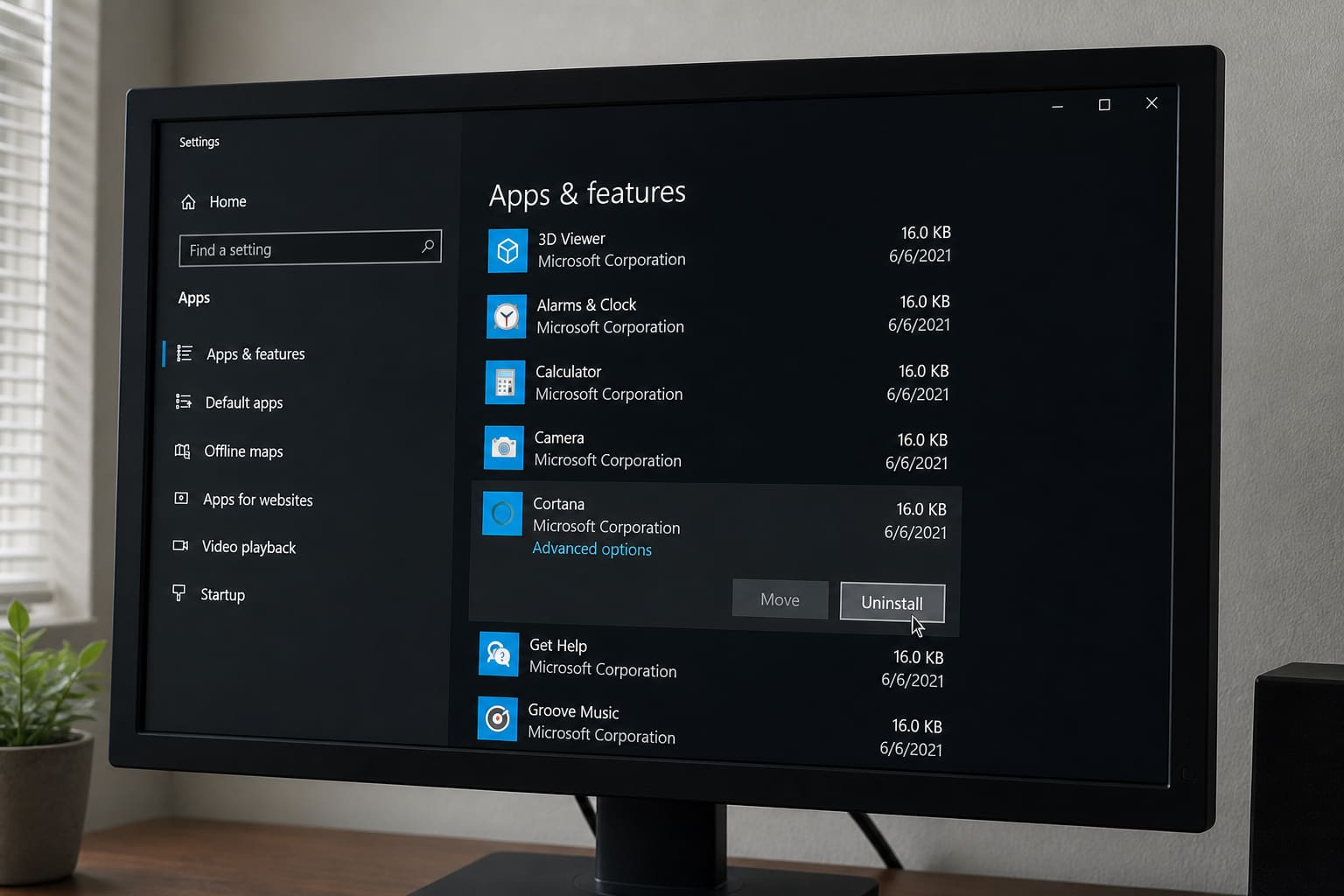
Deleting a desktop shortcut does not uninstall software. Here’s how to remove programs properly on Windows.
Method 1: Settings (Windows 10/11)
- Settings → Apps → Installed apps
- Find the program → ⋯ → Uninstall
- Follow the uninstaller prompts
- Restart if asked
Method 2: Control Panel
- Control Panel → Programs and Features
- Select program → Uninstall
Useful for older desktop apps.
After Uninstall Cleanup (Optional)
- Check
C:\Program FilesandProgram Files (x86)for leftover folders — delete only if empty/junk and you’re sure - Check Startup apps — disable leftovers
- Empty Recycle Bin
Avoid aggressive “force uninstall” tools from random sites.
Built-in Apps
Some Windows apps reinstall via Store updates. You can reset/uninstall many from Installed apps; a few system components can’t be removed safely.
Uninstall Windows Programs — FAQ
Why is Uninstall greyed out?
Work/school policies, missing admin rights, or a broken installer. Try admin account or the vendor’s cleanup tool.
Does uninstall free a lot of space?
Games and creative suites yes. Tiny utilities barely move the needle — clear Downloads/cache too.
Related slow-PC tip
See How to Speed Up a Slow Windows Laptop.
Sources / Verify With
- Microsoft uninstall or remove apps help
Original Sen Gideons News Studio editorial.