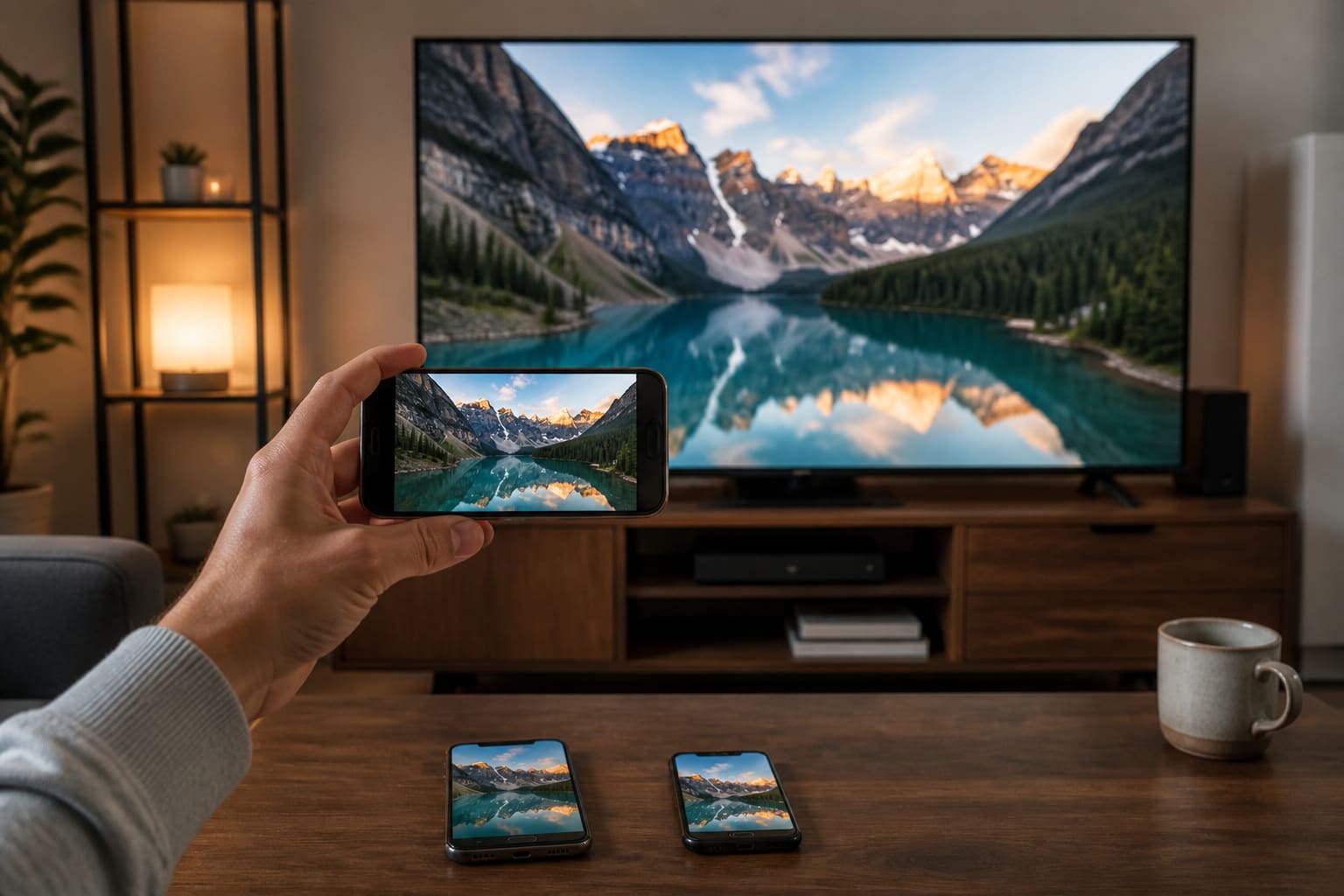
Casting puts your phone screen (or an app) on the TV — great for matches, YouTube, and presentations when a projector isn’t around.
Requirements
- Phone and TV on the same Wi‑Fi
- A cast-capable TV (Chromecast built-in, AirPlay, Miracast, Smart View, etc.)
- Or a cheap HDMI adapter as backup
Android → TV
- Swipe down Quick Settings
- Tap Cast / Smart View / Screen Mirroring (name varies)
- Select your TV
- Or open YouTube/Netflix → cast icon inside the app (smoother than full mirroring)
Samsung phones pair well with Samsung TVs via Smart View. Google Cast works widely on Chromecast / Android TV.
iPhone → TV
- Use an AirPlay TV (Apple TV or AirPlay 2 smart TV)
- Control Center → Screen Mirroring → pick the TV
- Or cast from YouTube/Apple TV apps when available
No AirPlay? Use an HDMI adapter (Lightning/USB-C to HDMI) — most reliable offline option.
Cast Phone to TV — FAQ
Why can’t my phone see the TV?
Different Wi‑Fi bands/networks, guest Wi‑Fi isolation, or TV cast feature disabled. Reboot router/TV.
Is mirroring laggy for games?
Often yes. App casting (YouTube) is smoother than full screen mirror.
Does casting use mobile data?
On same Wi‑Fi, mostly local network. Hotspot casting can burn data and lag.
Sources / Verify With
- Google Cast help
- Apple AirPlay support
- Your TV maker’s mirroring guide
Original Sen Gideons News Studio editorial.