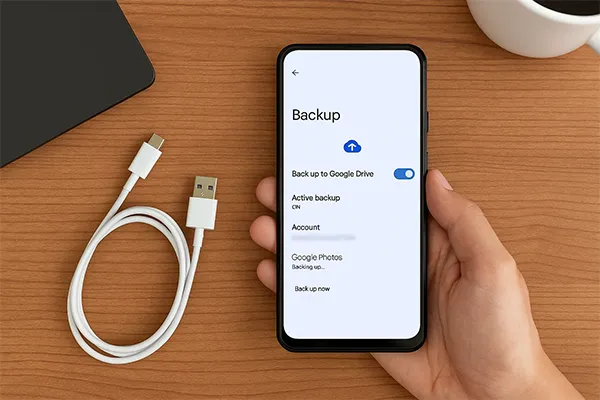
Before a factory reset or phone upgrade, back up deliberately — Google’s one-tap backup doesn’t cover everything people assume.
Backup Checklist
| Data | How |
|---|---|
| Photos & videos | Google Photos backup (Wi‑Fi) |
| Contacts | Google account sync |
| Chat backup to Google Drive | |
| Apps & some settings | Settings → Google → Backup |
| Downloads / PDFs | Copy to Drive or PC |
| SIM contacts | Export to Google if still on SIM |
Related: Factory Reset Android Safely and Back Up WhatsApp Chats.
Turn On Google Backup
- Settings → Google → All services / Backup (path varies)
- Enable Backup by Google One
- Tap Back up now
- Stay on Wi‑Fi until it finishes
What Cloud Backup Often Misses
- WhatsApp media if you never ran chat backup
- App logins that need 2FA again
- Files only in Downloads
- Some banking app data (reinstall + verify)
- SD card content (back up separately)
Moving to a New Phone
Use the manufacturer’s cable transfer tool (Samsung Smart Switch, Google cable setup, etc.) plus confirm Photos and WhatsApp restores.
Android Backup — FAQ
Do I need Google One paid plan?
Free tier often enough for settings; large photo libraries may need more Drive space.
Is local computer backup better?
Best combined approach: Photos/Drive + USB copy of critical folders.
iPhone users?
Use iCloud or computer backup — different flow.
Sources / Verify With
- Google Android backup help
- WhatsApp Google Drive backup help
Original Sen Gideons News Studio editorial.