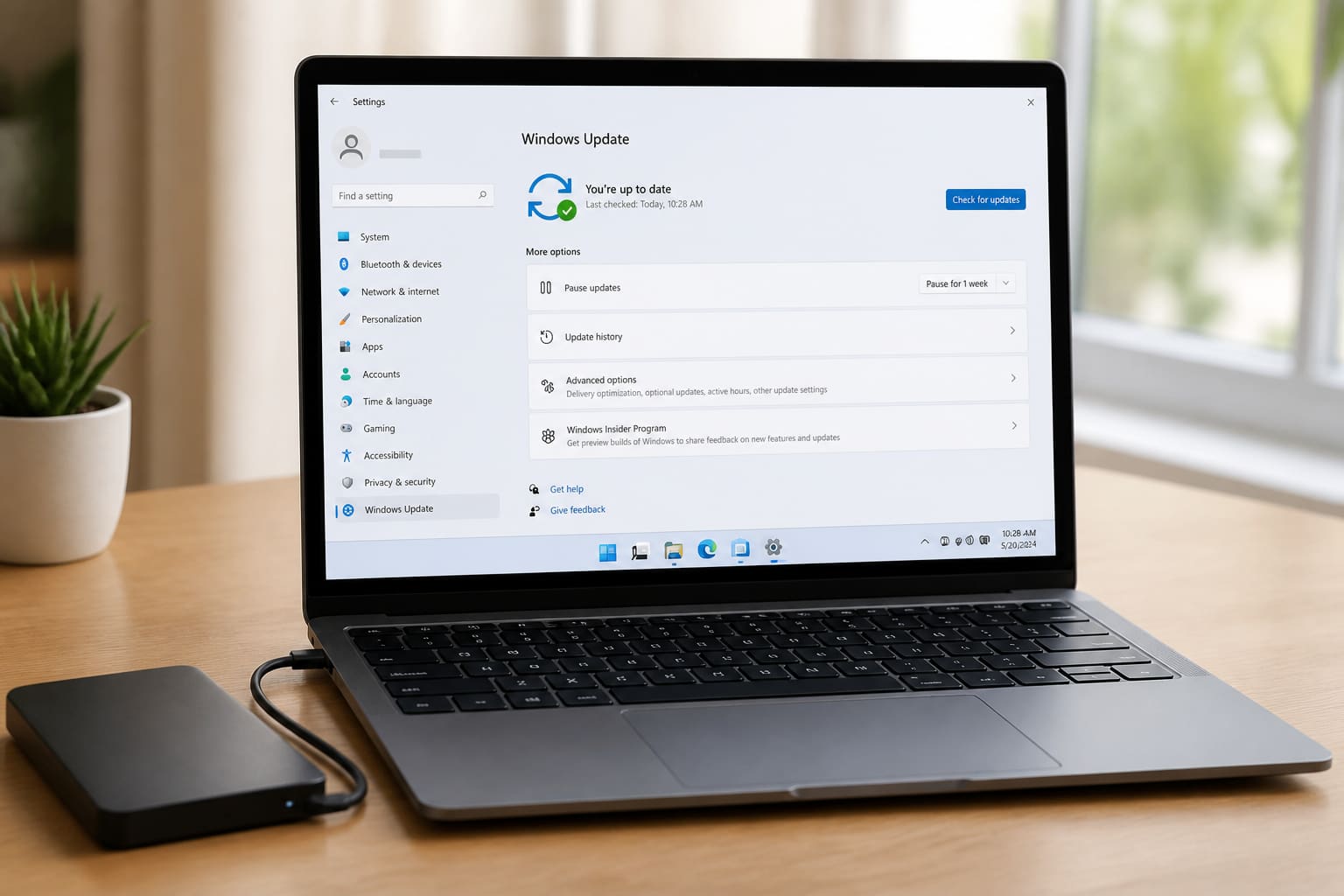
Windows updates fix security holes — and occasionally cause temporary headaches. Here’s how to update Windows 11 with less stress.
Before You Update
- Save your work and close apps
- Plug in the laptop
- Free a few GB on
C: - Note important files are backed up (Drive/USB)
- If you’re mid-deadline, use Pause updates for a few days
How to Check for Updates
- Settings → Windows Update
- Click Check for updates
- Install → restart when asked
Optional updates (drivers) can wait unless you need a fix.
If Updates Fail
| Problem | Try |
|---|---|
| Stuck downloading | Pause 1 week → resume; or reset update components |
| “Not enough space” | Free disk space, empty Downloads |
| Loop restart | Boot troubleshooting / uninstall recent quality update |
| After update Wi‑Fi dies | Roll back network driver / use optional driver update |
Safe Habits
- Don’t download “Windows update packs” from random sites
- Keep antivirus from blocking
wuauservices unnecessarily - After big feature updates, give the PC 20 quiet minutes to finish background work
Windows 11 Update — FAQ
Should I install every optional update?
Security/quality updates: yes when stable. Optional drivers: only if you have a reason.
Can I stay on Windows 10 forever?
Support timelines change — plan a hardware-capable upgrade path eventually.
Updates using too much data?
Use metered connection on mobile hotspots; prefer café/home Wi‑Fi for big downloads.
Sources / Verify With
- Microsoft Windows Update troubleshooting
- Windows release health dashboard (for known buggy patches)
Original Sen Gideons News Studio editorial. UI labels can shift slightly with builds.