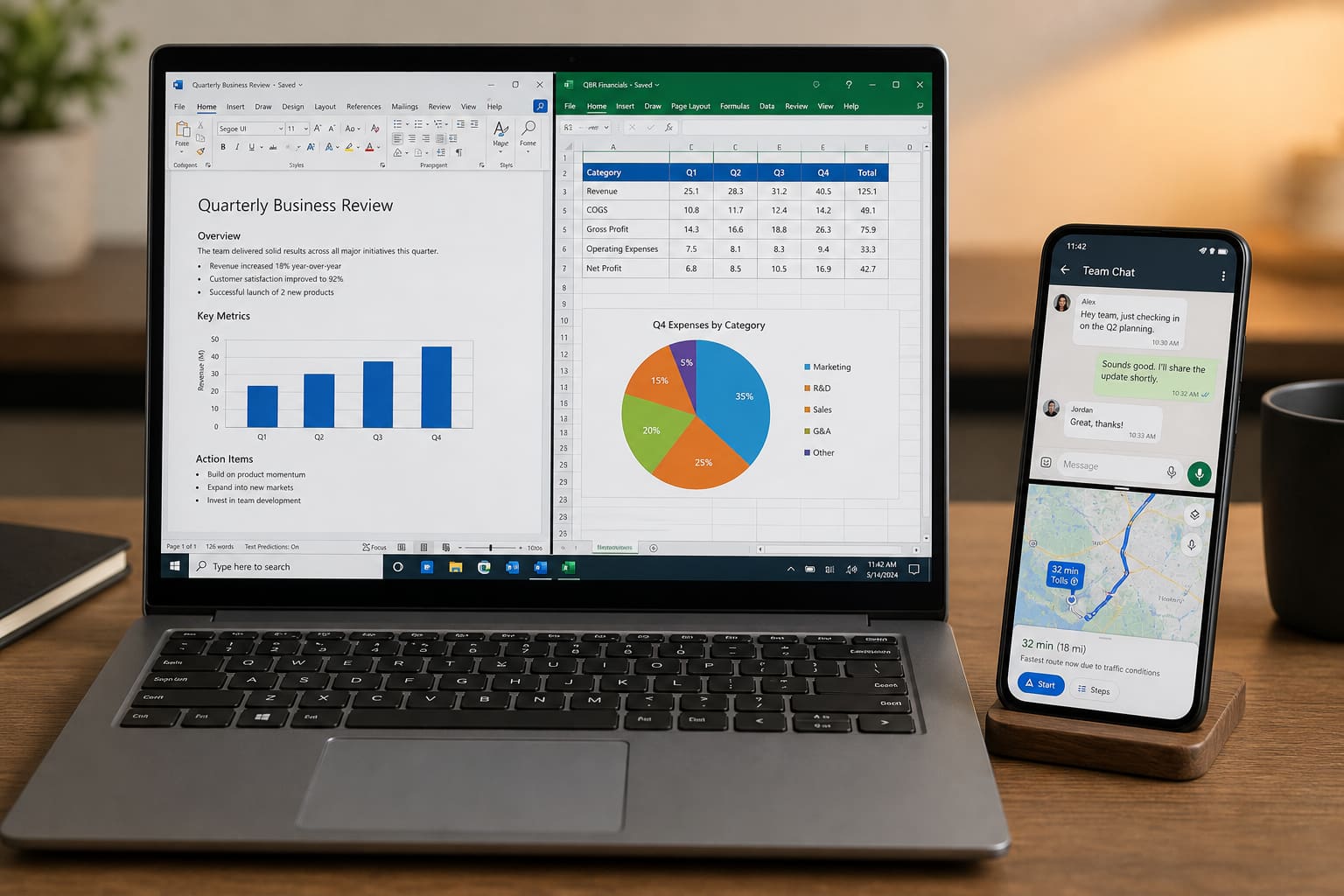
Split screen lets you watch a tutorial and take notes — or keep WhatsApp open beside a spreadsheet.
Windows Snap
- Drag a window to the left/right edge
- Or
Win + Left/Right Arrow - On Windows 11, hover the maximize button for Snap Layouts
Win + Zopens snap layouts on many builds
Pair with virtual desktops (Win + Ctrl + D) when you need whole workspaces, not just two panes.
Android Multi-Window
Methods vary by brand:
- Open Recents / Overview
- Tap the app icon → Split screen / Open in split screen
- Pick the second app
Some phones support edge panel apps or pop-up view (Samsung). Not every app allows split (banks sometimes block it).
When Split Screen Helps
| Task | Pairing |
|---|---|
| Study | YouTube + Notes |
| Work | Docs + WhatsApp Business |
| Shopping | Browser + Calculator |
On small phones, split screen can feel cramped — tablets and large phones shine here.
Split Screen — FAQ
Why is Split screen greyed out?
App doesn’t support multi-window, or you’re in a secure/fullscreen mode.
Keyboard covers half the screen?
Rotate to landscape or collapse the keyboard; some apps resize poorly.
Related Windows tips
See Windows Keyboard Shortcuts.
Sources / Verify With
- Microsoft Snap windows help
- Your Android brand’s multi-window guide
Original Sen Gideons News Studio editorial.