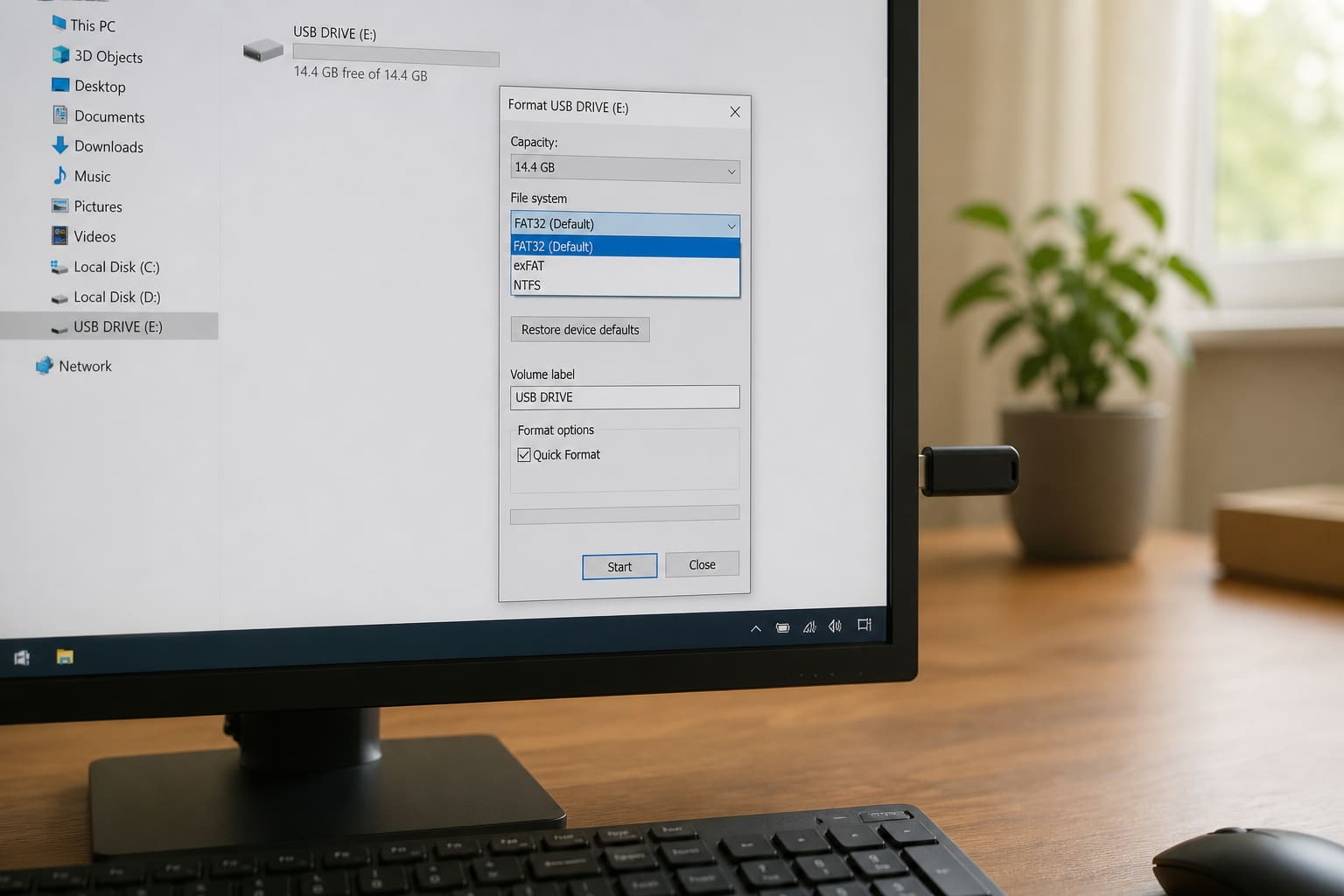
Wrong USB format is why pendrives work on a PC but fail on TVs, cars, or Android OTG.
Which Format?
| Format | Best for | Limit |
|---|---|---|
| exFAT | Big files + Windows/Mac/many TVs | Best general pick for large USBs |
| FAT32 | Max compatibility (old devices) | Files over 4GB won’t copy |
| NTFS | Windows-only disks | Phones/TVs often can’t write |
For Android OTG + Windows sharing of large videos, start with exFAT.
Format on Windows (Careful)
- Plug in the USB
- Open File Explorer → This PC
- Right-click the USB letter (double-check it’s not your hard disk!)
- Format → choose File system → Start
Quick Format is fine for healthy drives. Full format takes longer and scans bad sectors.
USB Format — FAQ
Will format delete everything?
Yes. Copy files off first.
Why does Windows say “You need to format this disk”?
File system corruption or unsupported format. Recover files first if data matters, then format.
Can I fix write-protected USB?
Sometimes via Diskpart / physical lock switch — many cheap failing drives are beyond saving.
Sources / Verify With
- Microsoft format a disk help
Original Sen Gideons News Studio editorial. Always verify the drive letter before formatting.