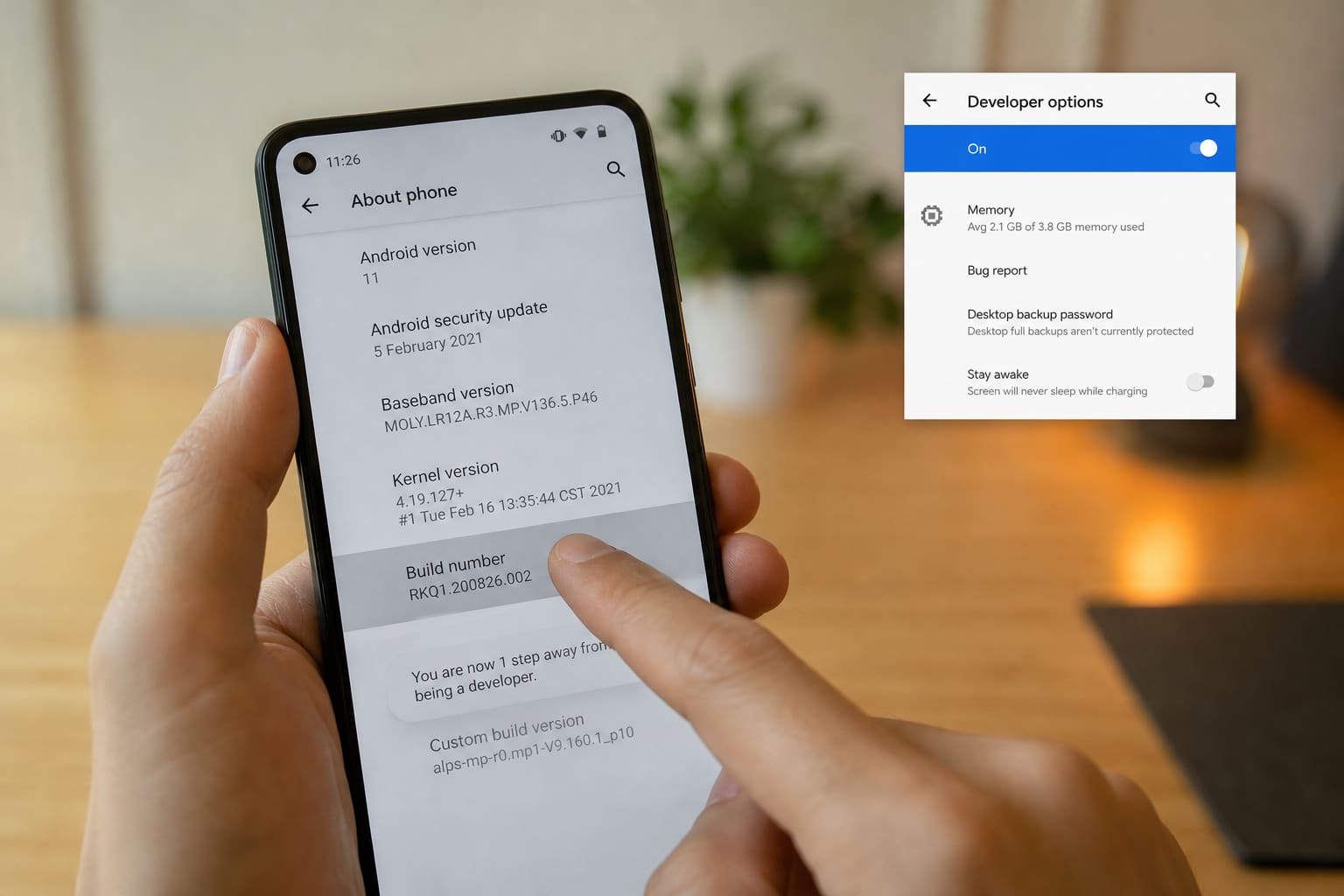
Developer options unlock advanced Android tools — useful for USB debugging, OEM unlocking research, and performance tinkering. They’re hidden for a reason.
How to Enable
- Settings → About phone
- Find Build number
- Tap it 7 times until you see “You are now a developer”
- Go back → System (or Additional settings) → Developer options
- Toggle Developer options On
Samsung/Xiaomi/Tecno paths vary slightly (“Software information” under About).
Useful (Relatively Safe) Tweaks
| Setting | Use |
|---|---|
| USB debugging | Dev tools / some recovery apps |
| Show taps | Screen recordings / demos |
| Don’t keep activities | Testing only — can annoy daily use |
| Animation scale 0.5x | Feels snappier on older phones |
Leave These Alone Unless You Know Why
- OEM unlocking (factory reset risk / warranty considerations)
- Mock locations (unless you need it)
- Mobile data always active hacks
- Random “force GPU” toggles from TikTok tips
Turn It Off When Done
Toggle Developer options off if you enabled them only for one task. Unplug USB debugging on public PCs.
Developer Options — FAQ
Will this root my phone?
No. Developer options ≠ root. Rooting is a separate, riskier process.
Is USB debugging dangerous?
On your own PC, fine. On a stranger’s laptop, don’t enable it.
Phone feels faster after 0.5x animations?
It feels snappier — it doesn’t add real hardware speed.
Sources / Verify With
- Google Android developer options documentation
Original Sen Gideons News Studio editorial. Brand skins rename menus.